> ## Documentation Index
> Fetch the complete documentation index at: https://docs.lemonado.io/llms.txt
> Use this file to discover all available pages before exploring further.
# Share through the client portal
> Give clients a focused place to see approved reports, dashboards, and ad views.
The Portal gives a client a simple view of the work you choose to share. They do not need access to your full Lemonado workspace.
Portals are available on agency plans that include client portals. An owner or admin manages the setup.
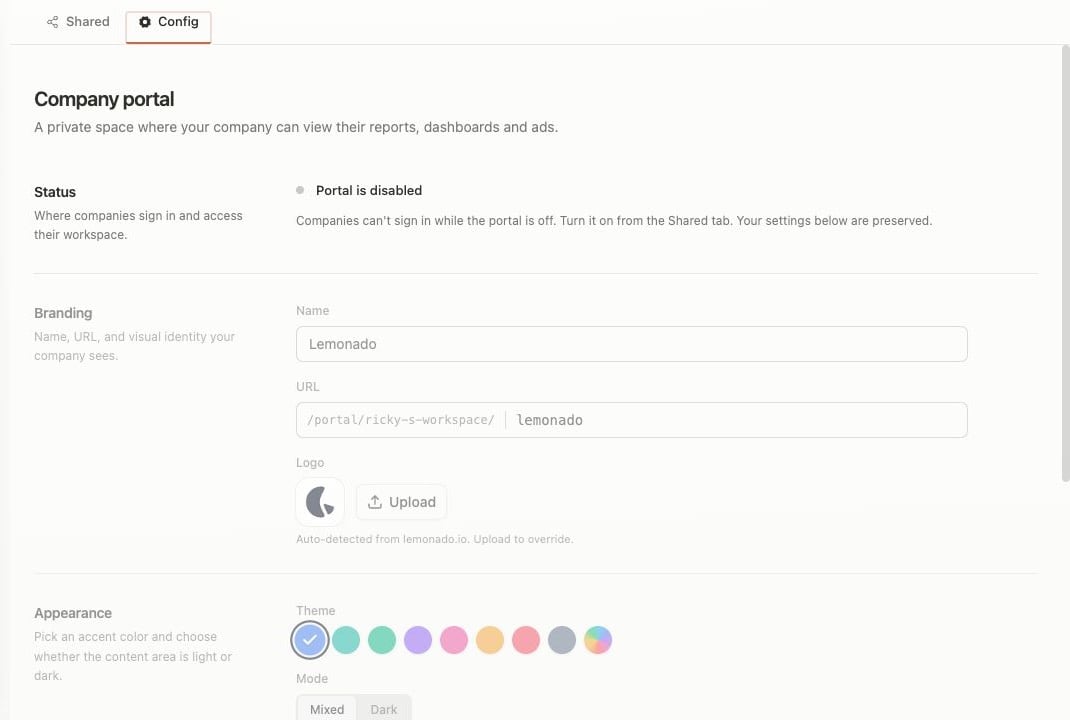 ## Set up the portal
1. Open the client and choose **Portal**.
2. Open **Config** to review the portal name, look, and access.
3. Turn the portal on when it is ready.
4. Use **Open portal** to check the client view.
## Share work
* Share reviewed reports or dashboards from **Studio**.
* Share a saved ad view from **Creatives**.
* Return to **Portal → Shared** to confirm what is visible.
Review dates, filters, and client details before you share. Turning the portal off hides all shared content from the client.
This documentation is built and hosted on [Mintlify](https://mintlify.com), a developer documentation platform.
## Set up the portal
1. Open the client and choose **Portal**.
2. Open **Config** to review the portal name, look, and access.
3. Turn the portal on when it is ready.
4. Use **Open portal** to check the client view.
## Share work
* Share reviewed reports or dashboards from **Studio**.
* Share a saved ad view from **Creatives**.
* Return to **Portal → Shared** to confirm what is visible.
Review dates, filters, and client details before you share. Turning the portal off hides all shared content from the client.
This documentation is built and hosted on [Mintlify](https://mintlify.com), a developer documentation platform.